Field Service Management Software That Works With QuickBooks
Compare field service management software quickbooks options by live sync, data direction, setup requirements, and export alternatives.

What happens when a technician finishes a job, but the invoice and customer details still need to be typed into another system? That gap makes field service management software that works with QuickBooks a practical choice for small crews. Our field service invoicing software supports the field-to-billing workflow; QuickBooks connectivity is a separate capability, so check whether the sync is available now and what it moves.
Your decision should start with the QuickBooks edition you use, then compare records, sync direction, and setup. A connection that transfers only customer lists differs from one that also handles estimates, invoices, and payments. The IRS recordkeeping guidance explains that business records support income and expense tracking and tax-return entries, so test the accounting handoff before adopting a system.
Which option fits your QuickBooks workflow?
If you need a live connection today, compare the documented sync scope of FieldPulse, ServiceM8, Jobber, and Workiz. Our platform is a strong fit for independent crews that want estimating, scheduling, field records, and billing connected in one workflow and can use exports for accounting in the meantime. QuickBooks sync is coming soon, so it is not a live-sync option today.
| Rank | Software | QuickBooks status | Documented data flow | Setup or plan note |
|---|---|---|---|---|
| 1 | FieldCommandOS | Sync coming soon; exports available | No live sync confirmed | Professional: $79 monthly or $756 annually; up to 7 users |
| 2 | FieldPulse | QuickBooks Online and separate Desktop guidance | Online sync covers customers, line items, estimates, invoices, and payments both ways | Requires QuickBooks Online Essentials, Plus, or Advanced; access by request |
| 3 | ServiceM8 | QuickBooks Online supported | Invoices and payments have different sync directions; clients and materials can sync both ways | Connect through the online dashboard |
| 4 | Jobber | New Online integration rolling out to select accounts | New sync runs from Jobber to QuickBooks after an optional initial import | Select plans; U.S. availability is limited to select accounts during rollout |
| 5 | Workiz | QuickBooks Online integration | Clients and items transfer; invoices can sync manually or automatically | Account permissions may be needed to enable the integration |
| 6 | Kickserv | Help article lists multiple QuickBooks editions | Confirm specific records and direction with the provider | Listed editions include Online, Self-Employed, Pro, Premier, Enterprise, and Mac |
1. FieldCommandOS
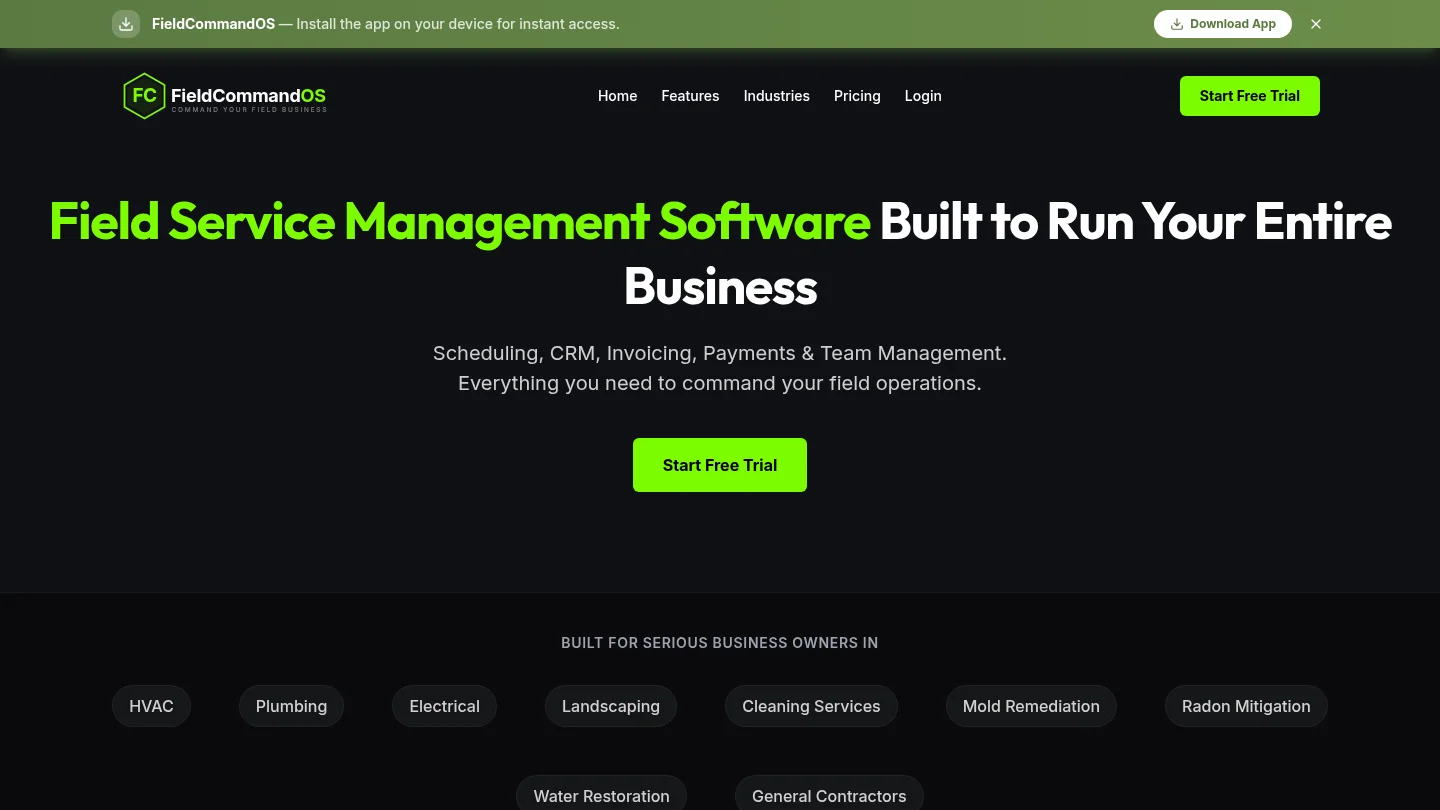
Best for: Independent service businesses that want a connected field workflow and can export accounting records until QuickBooks sync becomes available.
Our system connects customer records across estimating, scheduling, field documentation, invoicing, and payment collection. An approved estimate can become a scheduled job, and a completed job can become an invoice. Technicians can record time, photos, forms, and notes on the job record, keeping office and field teams aligned.
Our workflow reflects the day-to-day experience of founder Daniel McClain, a working inspector who also operates inspection, radon, and mold service businesses. That experience informs practical workflows for inspection follow-ups and multi-day remediation work; it does not establish independent performance results. See our field service software for small businesses for more on the connected workflow. You can also review our field service job costing software.
Pros
- One customer and job record connects estimates, scheduling, field notes, invoices, and payment collection.
- Plans support teams of up to 2, 7, or 15 users, with a 14-day trial for each plan.
- Professional includes up to 7 users and costs $79 per month or $756 per year. Annual billing is about 20% less than paying monthly for twelve months.
Cons
- QuickBooks sync is coming soon, not currently available. Until then, users can export records for their accountant, and our platform does not replace accounting software.
2. FieldPulse
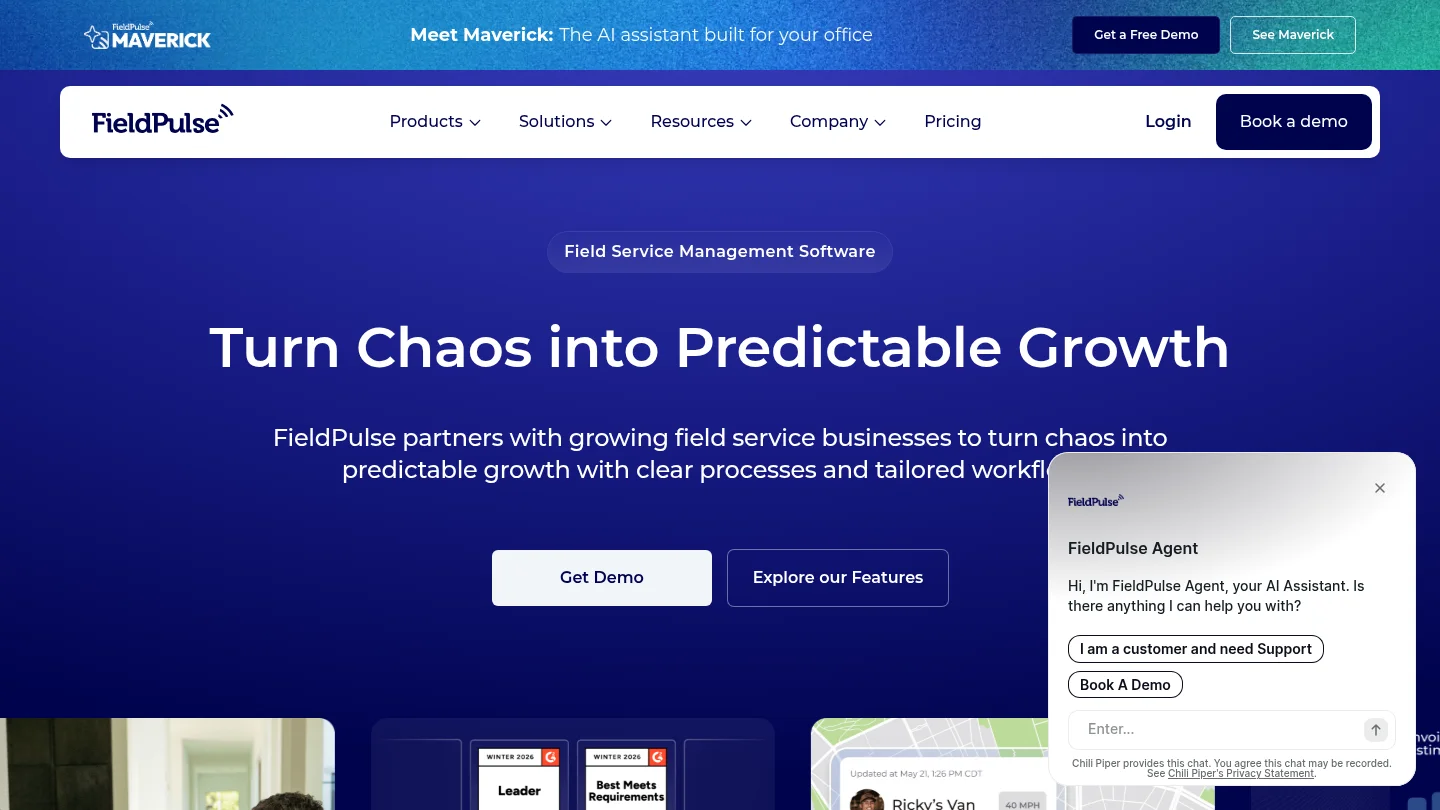
Best for: Businesses seeking a documented two-way QuickBooks Online connection across common customer and billing records.
FieldPulse’s QuickBooks Online guidance describes two-way syncing for customers, line items, estimates, invoices, and payments. The connection requires a separate QuickBooks Online Essentials, Plus, or Advanced subscription, and users request access before setup. Purchase orders and timesheets are separate opt-in syncs.
FieldPulse also maintains separate setup guidance for QuickBooks Desktop. If your accounting workflow relies on Desktop, confirm supported versions, setup requirements, and the exact records that transfer before migrating. Its Online documentation provides detailed direction and record coverage, which makes it easier to assess whether the connection matches your day-to-day billing process.
Pros
- Documented two-way QuickBooks Online coverage includes customers, estimates, invoices, line items, and payments.
- Separate QuickBooks Desktop guidance is available.
Cons
- QuickBooks Online access requires a request, and purchase orders and timesheets need separate opt-in setup.
- QuickBooks Online Essentials does not support inventory tracking, which affects the line items available in FieldPulse.
3. ServiceM8
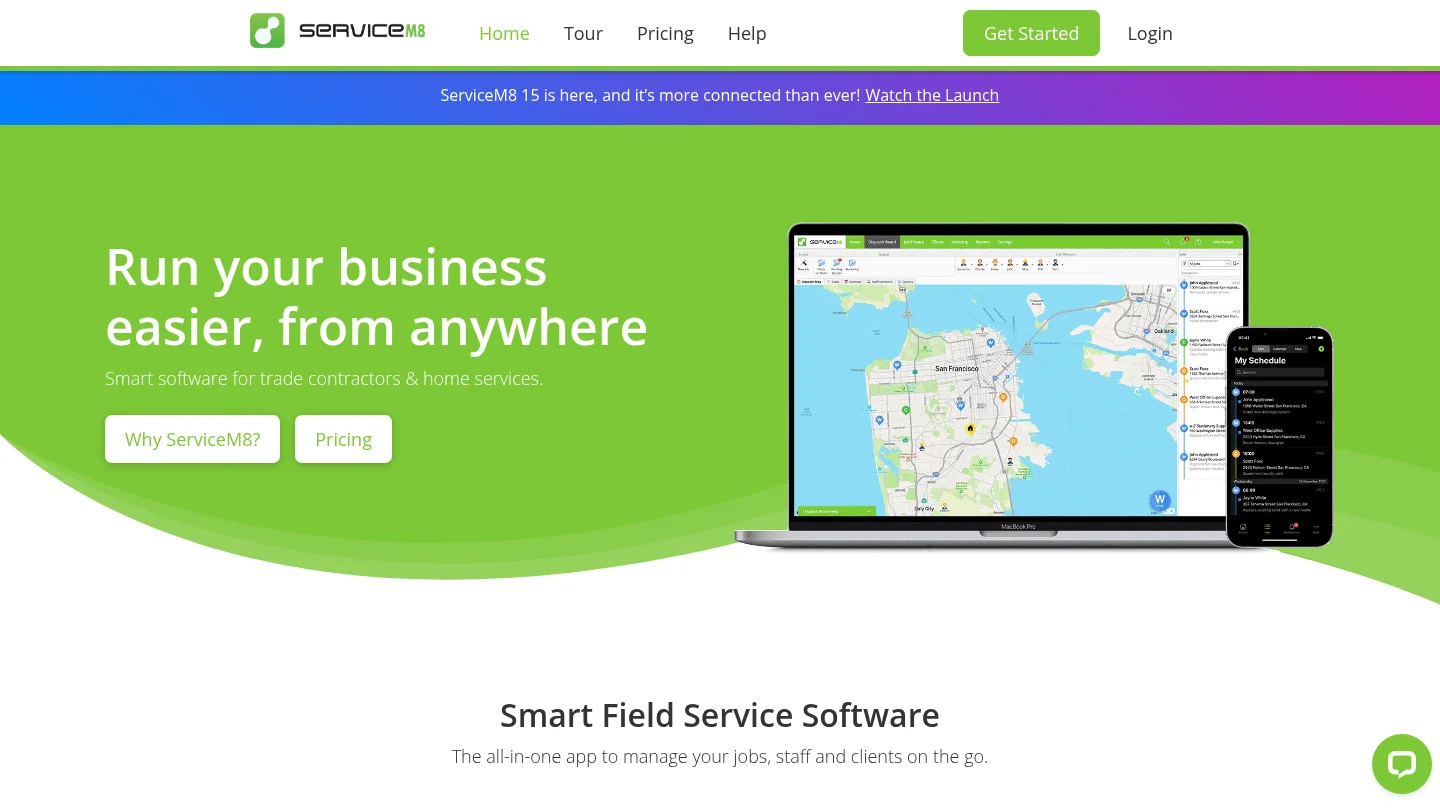
Best for: Businesses using QuickBooks Online that need specific invoice, payment, client, and materials flows.
ServiceM8 supports QuickBooks Online and documents the direction of key records. Invoices approved in ServiceM8 are sent to QuickBooks, but invoices created in QuickBooks are not sent back. Payments move both ways. Clients and materials can update between systems, although new ServiceM8 records are sent to QuickBooks with an invoice.
Tax codes import from QuickBooks into ServiceM8, and changes made in QuickBooks sync to ServiceM8. Staff records do not sync. These details make the connection more specific than a broad “integrates with QuickBooks” label, but they also mean you should confirm that your invoicing and payroll workflow fits these boundaries.
Pros
- Documented record behavior clarifies how invoices, payments, clients, materials, and tax codes move.
- QuickBooks Online is supported worldwide.
Cons
- Invoices flow from ServiceM8 to QuickBooks, not from QuickBooks back to ServiceM8.
- Staff records do not sync, so payroll workflows need a separate process.
4. Jobber
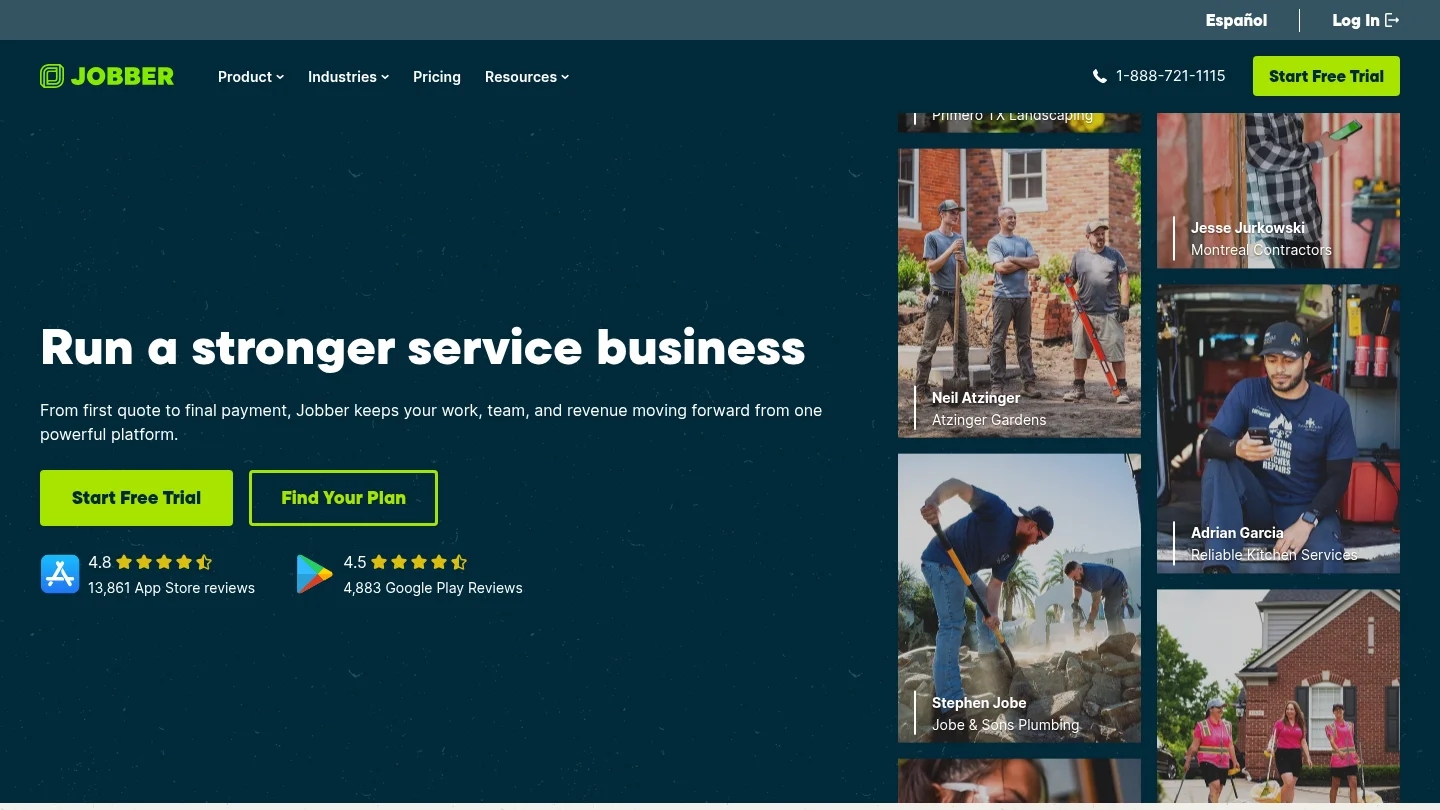
Best for: Teams that use QuickBooks Online and can access an eligible plan and integration rollout.
Jobber’s new QuickBooks Online integration is rolling out to select accounts in the United States and Canada, and it is available on select plans. The new sync runs automatically from Jobber to QuickBooks. A one-time, optional import can bring clients and products or services from QuickBooks into Jobber during setup.
The new integration covers clients, products and services, invoices, and payments, with settings for when items sync. Payment information can be set to sync when collected or remain in Jobber. Timesheets can also be configured to sync after approval. Because the rollout is limited and the new connection is one-way, verify which integration and plan your account can use.
Pros
- Documented coverage includes clients, products and services, invoices, and configurable payment syncing.
- The new integration syncs automatically after setup.
Cons
- The new connection is still rolling out to select accounts and is available only on select plans.
- After the optional initial import, the new sync runs from Jobber to QuickBooks, not both ways.
5. Workiz
Best for: Businesses that need QuickBooks Online connected to customer, item, and invoice workflows.
Workiz documents an integration with QuickBooks Online. Its initial sync transfers clients and items from QuickBooks to Workiz, then sends clients and items from Workiz to QuickBooks. New or updated clients and items in Workiz sync automatically after the initial process.
Invoices can sync manually or automatically based on account settings. Workiz’s setup article describes client and item flows, but businesses with other essential accounting records should confirm those specific transfers before choosing. Check the integration log after the first sync to review what moved.
Pros
- Initial syncing brings client and item records into Workiz from QuickBooks Online.
- New and updated clients and items can sync automatically, and invoices have manual or automatic options.
Cons
- Invoice syncing requires a choice between manual and automatic handling in the account settings.
6. Kickserv
Best for: Businesses that need to check QuickBooks edition compatibility before reviewing specific record flows.
Kickserv’s help article lists compatibility with QuickBooks Online, Self-Employed, Pro, Premier, Enterprise, and QuickBooks for Mac. That broad edition list can be useful when a company is not using QuickBooks Online, but it does not by itself establish which records sync or in which direction.
The article listing these editions was last updated September 26, 2023. Confirm that the connection supports your current QuickBooks edition and ask which records transfer before relying on it for invoicing or reconciliation. Treat edition compatibility and record-level syncing as separate questions.
Pros
- The help article lists compatibility across Online, Self-Employed, several Desktop editions, and Mac.
- Kickserv also documents estimates, invoices, customer management, and online payments as part of its field-service workflow.
Cons
- The published edition list does not specify record-level sync direction, so confirm your required workflow directly before setup.
How should you test a QuickBooks connection?
Start with the records your business actually uses: customers, service items, estimates, invoices, payments, tax details, and timesheets. Confirm the sync direction for each record, which system owns edits, and whether changes update automatically. The Small Business Administration’s finance guidance recommends proper bookkeeping and basic knowledge of business finances, making accurate record flow an operational requirement.
Before moving live data, test one sample customer, estimate, invoice, and payment. Change a customer detail in each system, then check whether it updates, creates a duplicate, or remains unchanged. Review the sync log and confirm how errors are handled. SCORE’s bookkeeping basics recommends tracking billings and payments regularly, a routine that becomes harder when a connection misses or duplicates records.
What should you prioritize when choosing?
For an immediate QuickBooks connection, compare the exact edition, direction, record coverage, and plan restrictions before signing up. FieldPulse documents broad two-way Online syncing, while ServiceM8 specifies distinct flows for invoices, payments, clients, and materials. Jobber and Workiz also document active connections, with rollout, plan, or record-flow details to check.
For a small crew that values connected estimates, scheduling, field documentation, and invoicing, our platform keeps those operations on one job record. QuickBooks sync is coming soon, and exports are available for your accountant in the meantime. Choose it when workflow continuity matters more than a live QuickBooks connection today.
Conclusion
Choose field service software with a clear accounting workflow, not merely a connection label. Confirm your QuickBooks edition, record coverage, sync direction, and plan restrictions with a test before moving live data. Our connected field workflow suits independent crews that can use exports while QuickBooks sync is coming soon; teams requiring live sync now should select an option whose current connection matches their accounting process.
Connect your field workflow from estimate to invoice
If your priority is keeping customer details, estimates, schedules, field notes, and invoices on one job record, our platform is built around that handoff. Founder Daniel McClain is a working inspector who operates inspection, radon, and mold businesses, and that experience informs our workflow for independent service crews. We do not replace accounting software, and QuickBooks sync is coming soon.
Every plan includes a 14-day trial. Our Professional plan costs $79 per month billed monthly or $756 per year billed annually, supports up to 7 users, and lists QuickBooks sync as coming soon. If that timing fits your needs, explore our field service management software and choose the plan that matches your team.
Frequently Asked Questions
Does FieldCommandOS sync with QuickBooks now?
No. QuickBooks sync is listed as coming soon, and users can export records for their accountant meanwhile.
Which QuickBooks editions does FieldCommandOS support?
No edition support can be confirmed while the sync is still coming soon. Check for published edition requirements before relying on a connection.
Is QuickBooks Online sync the same as QuickBooks Desktop sync?
No. They are separate products, so confirm edition compatibility and connection requirements for the specific software you use.
Which records should you test before choosing?
Check customers, service items, estimates, invoices, payments, tax details, and timesheets. Confirm which direction each record moves and whether edits update automatically.
Can field service software replace QuickBooks?
No. Our platform handles estimating, invoicing, and payment collection, but it does not replace accounting software.